
MODEL INSTRUCTIONS
Portable Wi-Fi router instructions
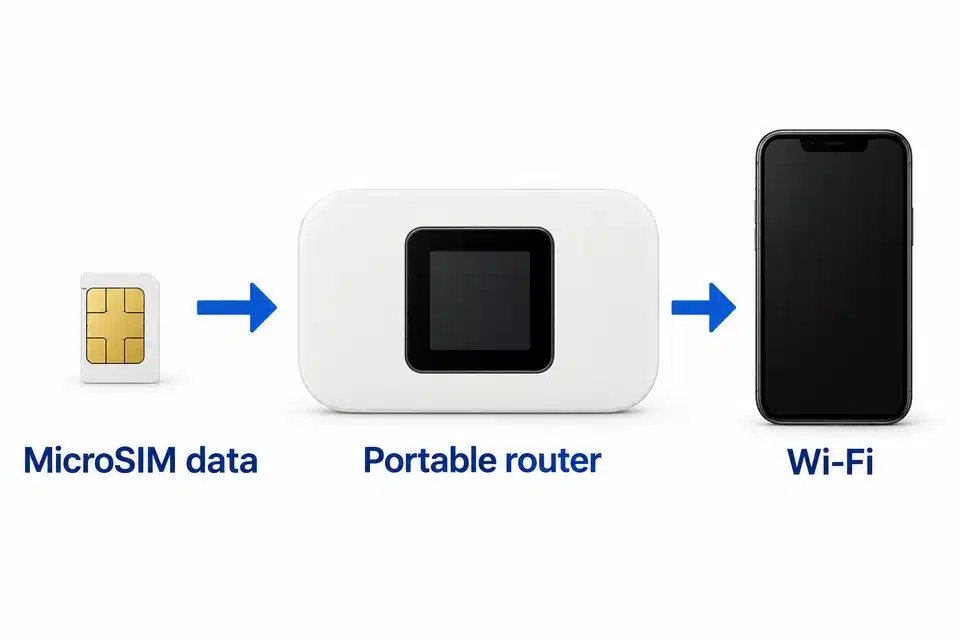
Fit a compatible MicroSIM and the battery, then start the router. Check mobile data before connecting the camera or another device to its Wi-Fi network.
Before you start
| Control or state | What it does |
|---|---|
| Mobile data / Wi-Fi | 3G/4G LTE mobile data shared through a 2.4 GHz Wi-Fi network. The printed case marking is not proof of 5G support. |
| Listed connections | Up to 10 connected devices; listed data rate 150 Mbps is not a guaranteed connection speed. |
| Listed size / weight | 9.7 × 5.9 × 1.5 cm; 150 g. |
| Listed battery | 3000 mAh; up to 8 hours in use and 90 hours standby are estimates that depend on conditions. |
| Listed kit | Router, 3000 mAh battery, NanoSIM-to-MicroSIM adapter and USB-C charging cable. |
Check the chosen option and your order’s contents before using or replacing parts. Optional bundles are included only when selected.
Remove the battery contact protector and SIM PIN. Check the displayed operator and signal before connecting another device.
1. Open the cover and prepare the battery
- Open the rear cover at its fingernail tab.
- Remove the plastic battery-contact protector; it prevents proper charging and electrical contact.
2. Prepare the MicroSIM and fit the battery
- Check mobile data in a phone and temporarily disable the SIM PIN in that phone’s settings.
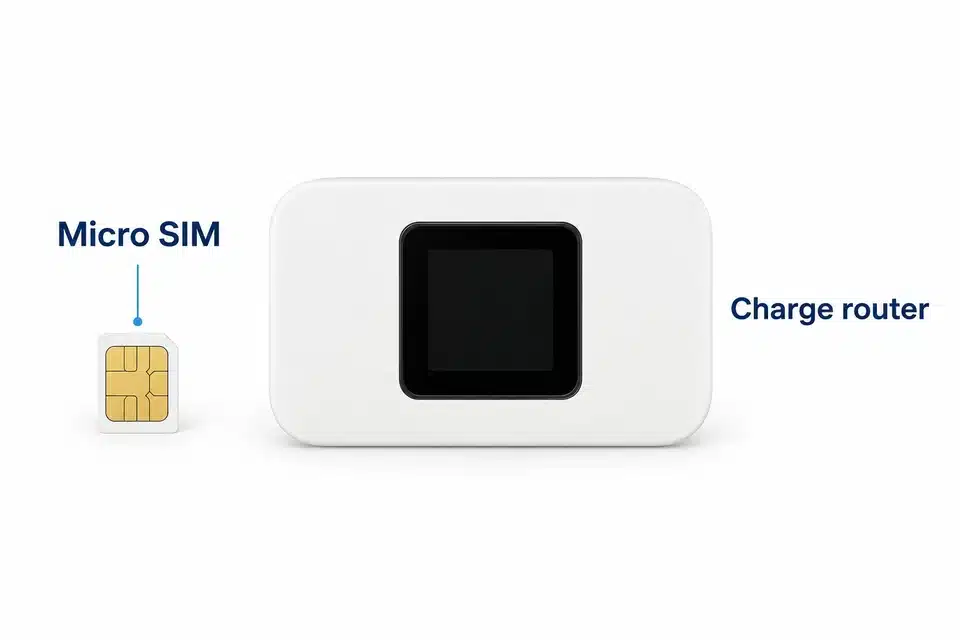
- Fit the MicroSIM in the marked cut-corner orientation. A NanoSIM needs the supplied MicroSIM adapter, seated securely; double-sided tape can keep the card seated in its adapter if needed.
- Fit the battery so its gold terminals meet the router’s contacts.
3. Start the router and check registration
- Hold power for 3 seconds, then allow about 1 minute for network registration.
- Check signal/connection type, battery percentage, Wi-Fi state and connected-device count, mobile operator and unread-SMS count.
- The screen also shows the Wi-Fi name/password and data used. Keep your password private.
- After 5 minutes without a connected Wi-Fi device, Wi-Fi switches off. Press power once to wake the Wi-Fi network.
If the operator is absent or NO SIM appears, check PIN, card seating, coverage and mobile-data service. Supported bands are listed below; matching a band does not guarantee operator access.
| Control or state | What it does |
|---|---|
| 4G FDD | B1 / B3 / B5 / B7 / B8 / B20 / B28* |
| 4G TDD | B38 / B39 / B40 / B41 |
| 3G WCDMA | B1 / B5 / B8 |
4. Change settings or hide the Wi-Fi name deliberately
- Connect a device to the router’s Wi-Fi, then open 192.168.0.1 in that device’s browser.
- The documented initial username and password are both admin. Open Router > User Management to change the network name/password.
- Configure the phone/camera that will use the router before hiding the network.
- To hide it, open Wireless > Wireless Security Settings, set Network Visibility Status to Invisible, then select Save.
5. Reset, charge and switch off
- A factory reset removes the configured settings. With the router on and the cover open, hold Reset until the lights go out; allow about 30 seconds.
- Hold power for 3 seconds to switch off.
- Charge with the supplied USB-C lead and a supply no higher than 5 V / 2 A. Listed charging time is 2–4 hours.
Fix a failed check
The router will not start or charge
Check that the battery-contact protector is removed, the battery gold contacts meet correctly, and the supplied cable uses no more than 5 V / 2 A.
NO SIM or no network signal
Check MicroSIM orientation, PIN removal and working mobile data. Charge/restart the router and test coverage. Compare the listed bands with the operator; try another operator’s SIM if needed.
Settings or password prevent connection
A factory reset removes settings. With the router on and cover open, hold Reset until the lights go out, then wait about 30 seconds and configure the network again.
Care and safety
Keep the device, cables and adapters dry. If they get wet, unplug safely and allow them to dry fully; do not use an external heat source such as a hairdryer or microwave.
Stop using damaged equipment. Use the supplied or specified power parts, keep cables/adapters indoors and do not handle connected equipment during a thunderstorm.
Use is discouraged with a pacemaker, hearing aid, other electronic medical device or a hearing condition. Seek suitable professional advice before use in those circumstances.
Follow local rules for use, privacy and disposal. This product is not a toy. Ask CooMax for the documentation and warranty terms that apply to your selected product and country.
Get model-specific help
Tell us the displayed operator/signal or NO SIM state, whether the SIM’s mobile data works in a phone, and which Wi-Fi connection failed. Keep passwords private.
Choose another model’s instructions