
Blog
Mini Wi-Fi camera setup: check the connection in order

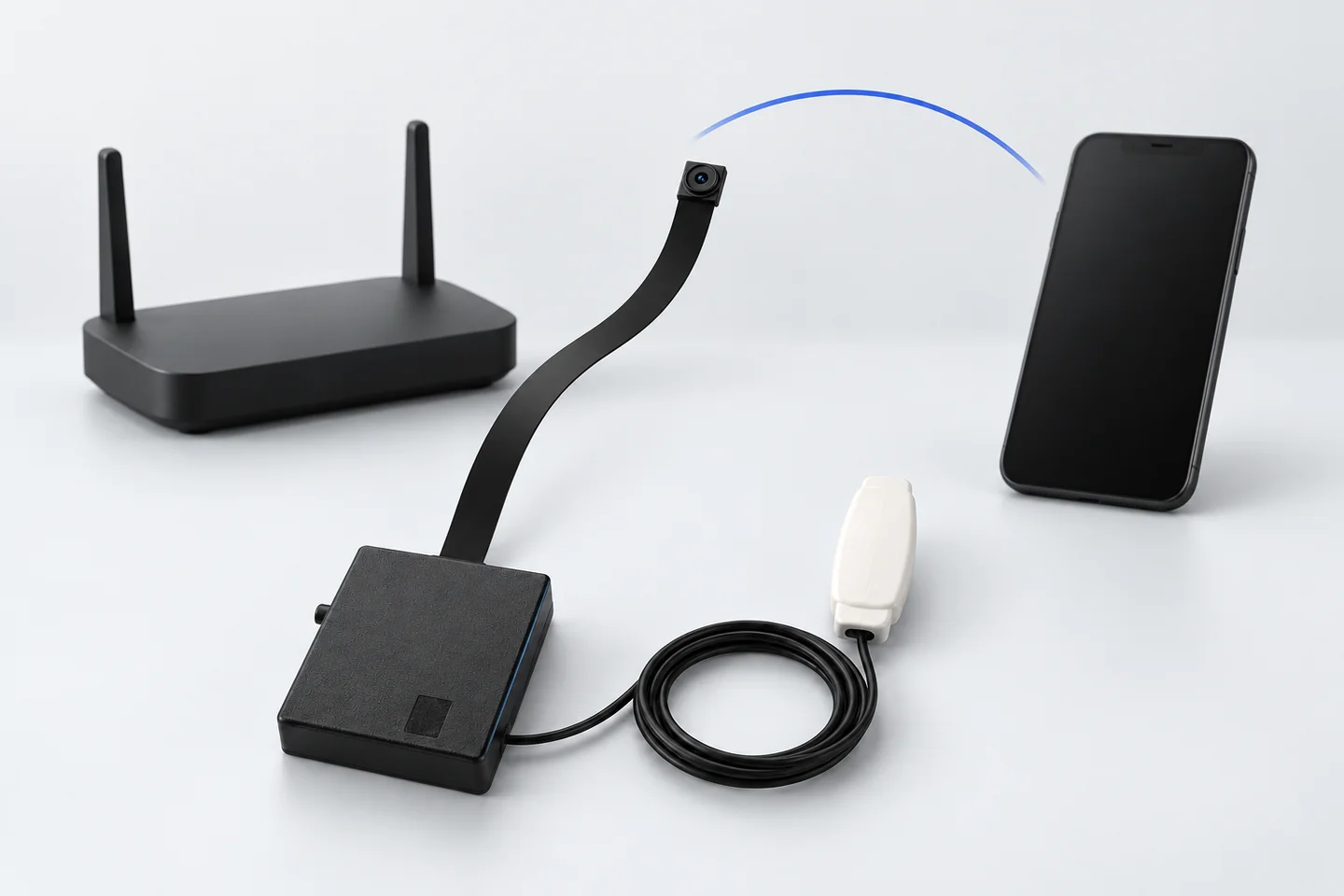
A mini Wi-Fi camera setup involves the camera, its app, the configuration phone and the network. Working through those parts in order makes a failed connection easier to diagnose.
Prepare the camera and its guide
Use the standard camera instructions or Pro camera instructions for your exact model. Charge the camera as specified and use the app identified by the guide. Keep it close to the intended router during initial setup.
Check that the chosen Wi-Fi network is 2.4 GHz. A 5 GHz-only network is a different Wi-Fi band. The 4G or 5G label on a mobile phone describes its mobile service and does not tell you the hotspot’s Wi-Fi band.
Router and hotspot setups differ
A home router provides the Wi-Fi network directly. A phone hotspot shares a mobile connection over Wi-Fi. For hotspot setup, the CooMax instructions call for a separate phone to run the camera configuration app. The phone providing the hotspot stays near the camera.
Check your hotspot settings for a 2.4 GHz or compatible mode, using the phone maker’s current instructions. Also review settings that switch the hotspot off automatically when idle or when power saving is active.
If the network does not appear
- Check that the network is visible to another device.
- Move the camera closer to the router or hotspot for the setup test.
- Confirm the 2.4 GHz band rather than relying on the network name.
- Use the app’s refresh step described in the guide.
- For a hotspot, confirm that the app is running on a different phone.
If setup fails after you enter the password
Check the password carefully, camera charge and signal strength. The guide also notes that the configuration phone must regain internet access after leaving the camera’s temporary Wi-Fi network. If mobile data was disabled earlier, review that step in the instructions.
Use a reset only when the model guide directs it. Resetting can remove settings, and the exact button procedure should come from the instructions for your camera.
Browse CooMax mini Wi-Fi cameras or send support the model, phone and failed step. Keep account credentials and network passwords out of public screenshots. Use cameras only where recording is authorised.